|
|
|
|
Closing Out Payroll
The closing of a Payroll Period accomplishes two goals:
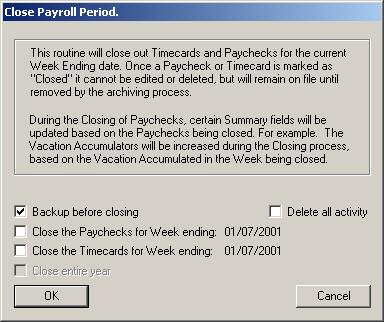
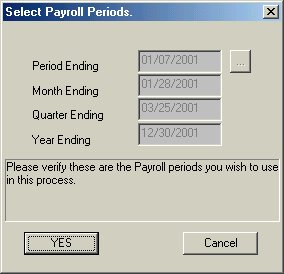
BACKUP BEFORE CLOSING:[Checked or Unchecked] When this option is checked, the program will back up the data prior to closing out the period. The backup file will include today's date in the file name, preventing these backups from overwriting previous backups. The file will be created in the ...\CCSWin\ODBC\CloseBackups folder. This checkbox is checked by default; we strongly recommend that you leave it that way. You should clean out these backups periodically. DELETE ALL ACTIVITY:[Checked or Unchecked] This option is password protected. If you check this box and enter in the correct password, all of the data associated with payroll will be deleted. Only the Employee files will remain. All accumlators will be zeroed out. The result will be a dataset that is ready for its first payroll, i.e., looks as if a payroll was never run against it. Restoring from backup is the only recovery. To close a week, enter the Payroll program with the week ending date you wish to close and then select "Close Out" from the PAYROLL UTILITIES MENU. Click on Close Out Payroll and/or Close Out Timecards and click on OK. NOTE: Closing a week, closes all previous weeks as well. This is required so that accumulators can be properly updated to include all current information. NOTE: The Week ending date to close out will always be the same as the week ending date that you used when you entered the Payroll module. Clicking the OK button causes the following dialog box to be presented:
Verify that you are closing out the proper Payroll Period. Clicking on "Yes" completes the process of closing out the period. NOTE: We repeat: Closing a week, closes all previous weeks as well. This is required so that accumulators can be properly updated to include all current information.
|
|
|